
What is autoscaling?
By default, Azure Virtual Desktop (AVD) session hosts are statically deployed. While session hosts are powered on, they are incurring compute and storage costs, for ‘renting’ the VM, and housing the OS storage disk. If you deallocate VMs, you save on the compute cost, but the storage costs persist. (FWIW this is the third-party website (cloudprice.net) I use for quickly viewing and comparing costs between SKUs and regions.)
Ideally, autoscaling provides demand elasticity. Based on the user demand, autoscaling can expand and contract available capacity, optimizing the usage costs described above.
Once created and defined, a scaling plan can be applied to multiple host pools, but a host pool can only utilize one scaling plan. Scaling plans can have multiple schedules to support changing requirements, such as weekdays versus weekends.
Important to note is that autoscale ignores drain mode settings, and for pooled scenarios, it ignores load balancing algorithms (in favor of those defined in the scheduled autoscaling plan).
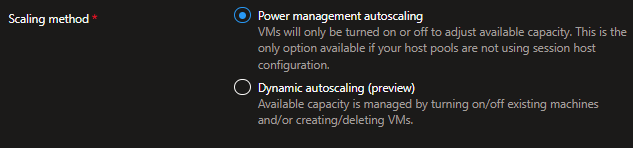
At present, Azure’s generally available autoscaling is Power management autoscaling:
- Adjusts available capacity in a pool by powering on and shutting off session hosts based on demand
Configuring scaling plans
For the scaling method, this post will cover Power management. In future posts, check out content on Dynamic autoscaling.
Configuring scaling plans
After inputting some metadata like the name, resource group, and region, admin can select their scaling type:
Scheduling options differ between pooled and personal scenarios. This section will discuss the nuances to be aware of. First, we’ll cover the four conceptual parts of the day:
- Ramp-up, which is the start of the day
- Peak hours are when the usage is highest
- Ramp-down hours occur as users logoff (typically where scaledown occurs)
- Off-peak hours are hours when the usage is lowest
Pooled schedules
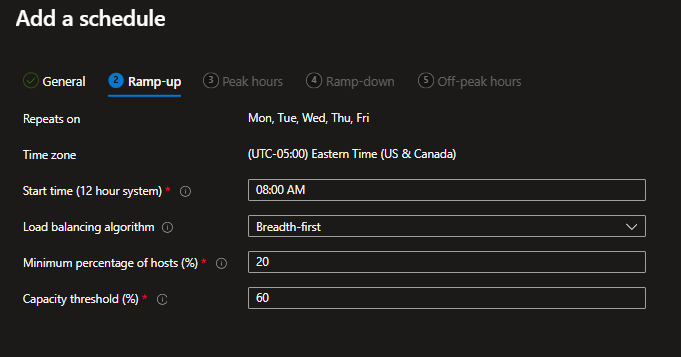
Below the Azure Portal Add a schedule wizard is shown. Admin specify when their ramp-up period begins, the desired load-balancing algorithm. Importantly, they specify the Minimum percentage of hosts (%) and Capacity threshold:
- Start time is when the ramp-up logic should start
- Minimum percentage of hosts is the percentage of session host VMs to start for ramp-up and peak hours. If you have 10 hosts in a pool and this is set to 10%, 1 VM will be powered on.
- Capacity threshold is the percentage of capacity used before autoscaling will evaluate rulesets. If this is set to 60% and the total host pool capacity is 100 sessions, additional session hosts will be powered on once exceeding 60 sessions.
- Load balancing algorithm is set to Breadth-first. As the machines are powered-on, end-users will be brokered to the ‘least busy’ host.
The peak hours period uses the same settings, except for Minimum percentage of hosts. During the peak usage periods you want capacity to handle incoming demand. So, all needed VMs are powered on.
- Notice here that the load balancing algorithm is now depth first, to effectively utilize all powered on resources.

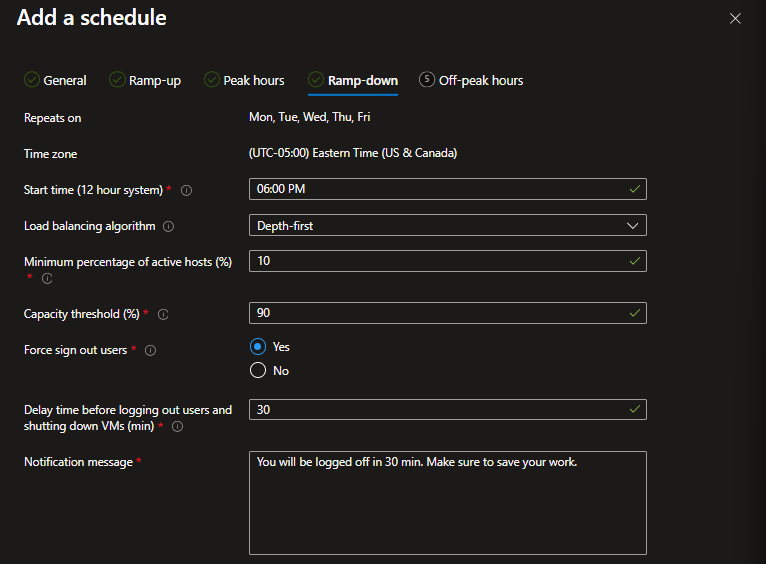
And below us now are the default Ramp-down settings.
- Minimum percentage of active hosts is the number of machines you’d want to leave powered on during off-peak hours. If you have 10 session hosts and this value is set to 10%, autoscale will power off 9 hosts, leaving 1 available.
- Capacity threshold means the same here. But, the noticeably higher value here means that a host pool with a total capacity for 100 sessions would only power on additional hosts when exceeding 90 sessions. During the ramp-down, this allows for powering down hosts.
Unlike the others, the ramp-down contains the force sign out and delay time before force logout settings.
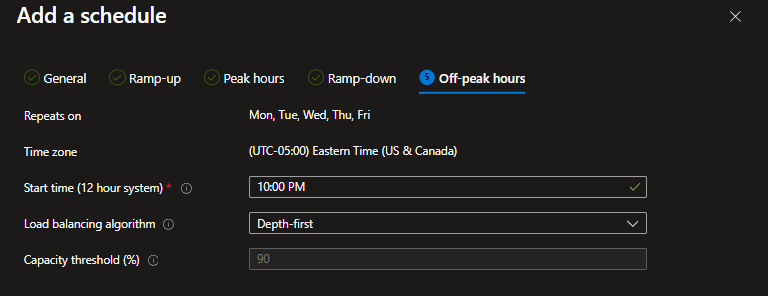
Lastly, here are the Off-peak hours settings. Only the capacity threshold is available.
Personal schedules
During ramp-up periods for personal pools, the following options are available.
- Whether to use Start VM on Connect, which allows for keeping host VMs powered off until they are needed
- VMs to start controls which machines would be powered on automatically at the ramp-up start time. For example, all assigned hosts can be started. Or, the Don’t turn VMs on at start time setting can be used with Start VM on Connect for maximum cost savings. This may hinder the user-experience as end-users have delayed logins.
Unlike pooled scenarios where multiple users are on a host VM, personal pools allow for more aggressive management. The Disconnect settings and Sign Out settings are unique to personal pools:
- When disconnected for N minutes, admin can configure whether to take no action, Hibernate the VM, or Shutdown the VM.
- When logged off for N minutes, admin have the same options.
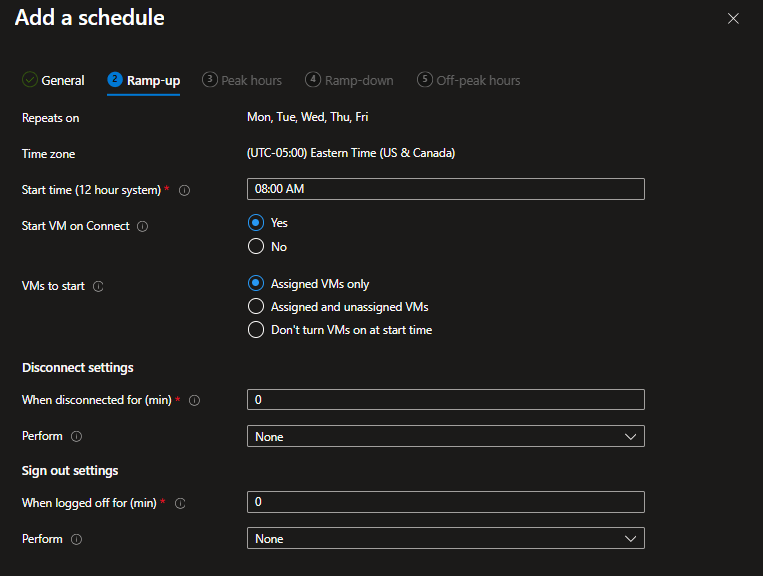

Peak hours, ramp-down, and off-peak hours all share the same Wizard options as shown here.
Because of the consistent settings, admin really are leveraging the Disconnect and Sign out settings to optimize costs. Depending on the time of day, admin may take a more (less) aggressive approach. As always there is a balance with end-user experience. Hibernating and/or shutting down host VMs will result in delayed logins when the user attempts reconnection which must be taken into account.

Coming soon…
As a follow up to this article, we’ll cover Azure’s Preview capability, Dynamic autoscaling. See you there.

Leave a comment