Category: End-User Computing

  • Shorter Cadence, Smarter Testing: How to Manage Microsoft 365 Updates

    Microsoft has reshaped their update cadence for Microsoft 365 applications, and product owners need to adjust their testing and release strategies accordingly.

    • Shorter support windows: The Semi-Annual Enterprise Channel now has only eight months of support (down from fourteen), giving IT teams less time to validate and stabilize builds.
    • More frequent updates: Most interactive,end-user systems are expected to move to the Monthly Enterprise or Current Channels.
    • Longer rollback: The Monthly Enterprise Channel now provides a two-month rollback option (up from one), creating a small buffer to mitigate risk.

    The long runway that enterprises once relied on for regression testing and validation is narrowing. To keep pace without compromising stability, end-user computing and Microsoft 365 product owners should embrace automation and modern release validation practices.

    The Solution: Automate, Validate, and Stay Confident

    Login Enterprise can help IT teams build confidence and preserve end-user experience, through:

    • Automated regression testing: Application testing can simulate end-user workflows across Microsoft 365 applications, including macros or complex VBScript in Excel.
    • Continuous validation: Supports integration with CI/CD pipelines via API, enabling frequent, repeatable tests.
    • Actionable insights: Detailed reporting and customized alerting helps IT identify broken workflows and prioritize fixes`

    Login Enterprise allows end-user computing teams to proactively validate Microsoft 365 updates, reduce downtime, and maintain confidence, even as updates accelerate.

    Examples: Excel Testing at Scale

    The screenshot below shows Microsoft Excel and an example spreadsheet with custom VBScript exposed through buttons. This simplified setup mirrors how many enterprise teams manage quality control for critical Excel customizations today.

    In a traditional quality assurance cycle, testers manually step through each Excel use case, documenting results and timing by hand.

    With Login Enterprise, the same process is automated, repeatable, and scalable. The example Application Test report below shows not only that each test case was executed successfully but also captures the runtime of every step. These results can be easily shared with a Change Advisory Board (CAB) or business stakeholders, translating technical findings into clear insights on risk and stability.

    The Takeaway: Agility Requires Automation

    While this new release cycle requires new management processes, there is an opportunity to rethink how enterprises approach change management altogether. Here are some things to consider:

    • Testing timelines are shrinking: An accelerated Microsoft 365 cadence means IT can no longer rely on longer validation windows.
    • Agility requires automation: Continuous integration and validation should be treated as core components of end-user computing strategy.
    • Reporting must bridge the tech gap:Clear data-driven reporting is meaningful to both IT and stakeholders to help inform risk decisions at the CAB.

    If you have any questions or enjoyed the blog, feel free to reach out or drop a like!
  • Dynamic autoscaling in AVD

    In previous posts, we covered Azure’s primary autoscaling capability, Power management autoscaling. It uses a matrix of rules defined across four periods of the day (Ramp-up, peak, ramp-down, off-peak hours) to power-on and power-off session host VMs.

    In this article, we’ll cover Azure’s Preview capability, Dynamic autoscaling – how it’s different than Power management autoscaling, additional benefits, and its limitations. First, we’ll walkthrough the configuration wizard and discuss available settings.

    Configuring dynamic autoscaling

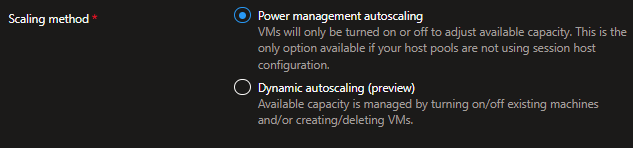
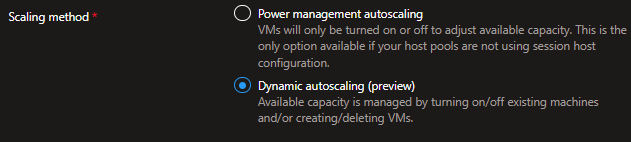
    While in Preview mode, Dynamic autoscaling goes further than Power management autoscaling by creating and deleting session hosts.

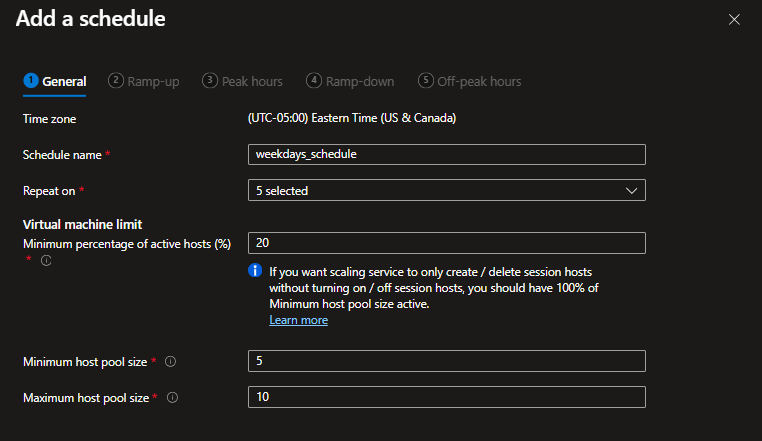
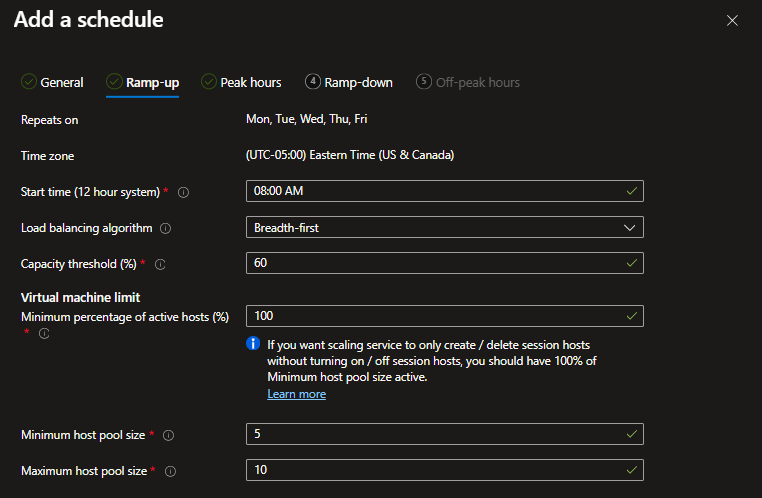
    Already the settings in the Add a schedule wizard differ than those for Power management autoscaling:

    • Minimum host pool size is base capacity floor (the min. number of hosts in the pool, whether running or stopped)
    • Maximum host pool size is the capacity ceiling; the max. number of session hosts that Autoscale can create
    • Minimum percentage of active hosts is the minimum percentage of session hosts that should be always available. If this value is set to 10% and the Minimum host pool size is 10, Autoscale will ensure 1 session host is available.

    Note the tooltip’s suggestion that a 100% setting for the Minimum percentage of active hosts will force autoscale to only create and delete hosts as opposed to starting and stopping them.

    The Add a schedule wizard has the same flow as the Power management autoscaling, including the same usage periods:

    • Ramp-up
    • Peak hours
    • Ramp-down
    • Off-peak hours

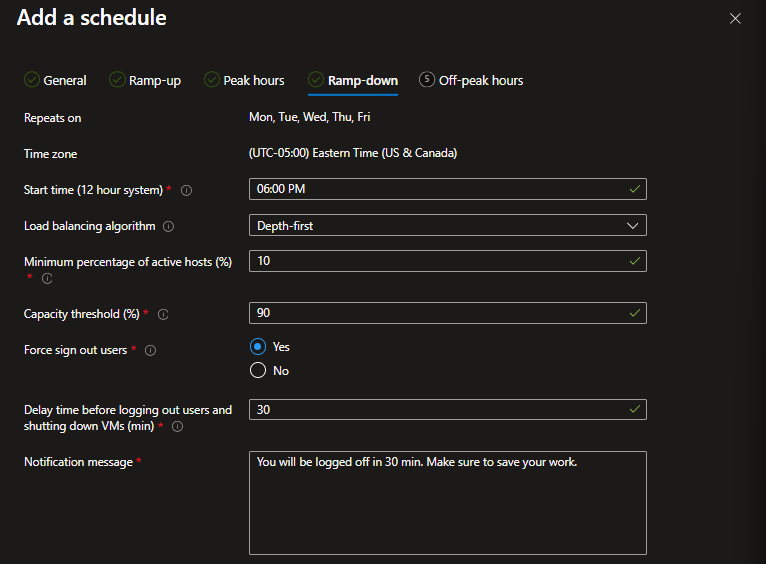
    The Ramp-down schedule has added some options for forced logoffs. These settings work the same as when configured for Power Management autoscaling – except for the fact that Autoscaling can now delete unused session hosts as opposed to just deallocating them.

    During off-peak hours using an aggressive capacity threshold and minimum active host percentage can provide cost savings by only spinning up session hosts ad hoc.

    What next?

    We’ve now covered the generally available Power management autoscaling and Azure’s Preview capabilities around Dynamic autoscaling. In future articles, we’ll directly compare the two solutions. See you there.

  • Power management autoscaling in AVD

    What is autoscaling?

    By default, Azure Virtual Desktop (AVD) session hosts are statically deployed. While session hosts are powered on, they are incurring compute and storage costs, for ‘renting’ the VM, and housing the OS storage disk. If you deallocate VMs, you save on the compute cost, but the storage costs persist. (FWIW this is the third-party website (cloudprice.net) I use for quickly viewing and comparing costs between SKUs and regions.)

    Ideally, autoscaling provides demand elasticity. Based on the user demand, autoscaling can expand and contract available capacity, optimizing the usage costs described above.

    Once created and defined, a scaling plan can be applied to multiple host pools, but a host pool can only utilize one scaling plan. Scaling plans can have multiple schedules to support changing requirements, such as weekdays versus weekends.

    Important to note is that autoscale ignores drain mode settings, and for pooled scenarios, it ignores load balancing algorithms (in favor of those defined in the scheduled autoscaling plan).

    At present, Azure’s generally available autoscaling is Power management autoscaling:

    • Adjusts available capacity in a pool by powering on and shutting off session hosts based on demand

    Configuring scaling plans

    For the scaling method, this post will cover Power management. In future posts, check out content on Dynamic autoscaling.

    Configuring scaling plans

    After inputting some metadata like the name, resource group, and region, admin can select their scaling type:

    Scheduling options differ between pooled and personal scenarios. This section will discuss the nuances to be aware of. First, we’ll cover the four conceptual parts of the day:

    • Ramp-up, which is the start of the day
    • Peak hours are when the usage is highest
    • Ramp-down hours occur as users logoff (typically where scaledown occurs)
    • Off-peak hours are hours when the usage is lowest

    Pooled schedules

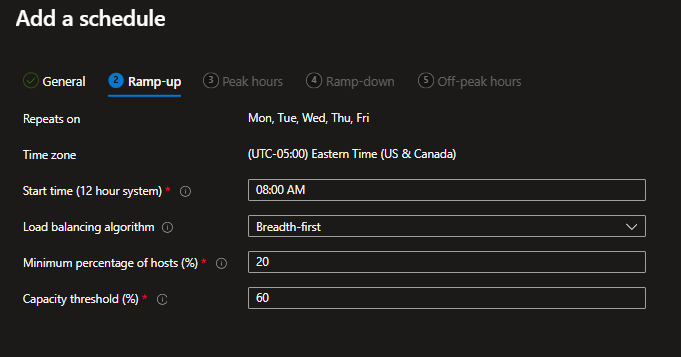
    Below the Azure Portal Add a schedule wizard is shown. Admin specify when their ramp-up period begins, the desired load-balancing algorithm. Importantly, they specify the Minimum percentage of hosts (%) and Capacity threshold:

    • Start time is when the ramp-up logic should start
    • Minimum percentage of hosts is the percentage of session host VMs to start for ramp-up and peak hours. If you have 10 hosts in a pool and this is set to 10%, 1 VM will be powered on.
    • Capacity threshold is the percentage of capacity used before autoscaling will evaluate rulesets. If this is set to 60% and the total host pool capacity is 100 sessions, additional session hosts will be powered on once exceeding 60 sessions.
    • Load balancing algorithm is set to Breadth-first. As the machines are powered-on, end-users will be brokered to the ‘least busy’ host.

    The peak hours period uses the same settings, except for Minimum percentage of hosts. During the peak usage periods you want capacity to handle incoming demand. So, all needed VMs are powered on.

    • Notice here that the load balancing algorithm is now depth first, to effectively utilize all powered on resources.

    And below us now are the default Ramp-down settings.

    • Minimum percentage of active hosts is the number of machines you’d want to leave powered on during off-peak hours. If you have 10 session hosts and this value is set to 10%, autoscale will power off 9 hosts, leaving 1 available.
    • Capacity threshold means the same here. But, the noticeably higher value here means that a host pool with a total capacity for 100 sessions would only power on additional hosts when exceeding 90 sessions. During the ramp-down, this allows for powering down hosts.

    Unlike the others, the ramp-down contains the force sign out and delay time before force logout settings.

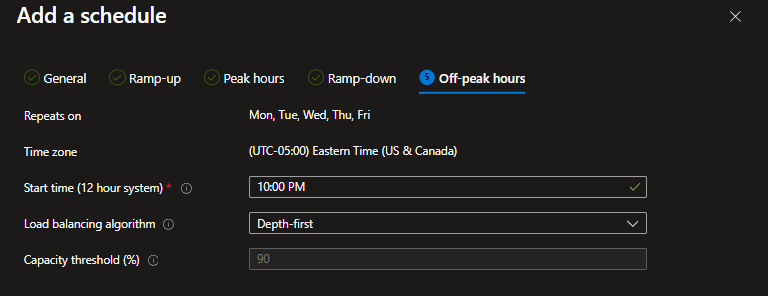
    Lastly, here are the Off-peak hours settings. Only the capacity threshold is available.

    Personal schedules

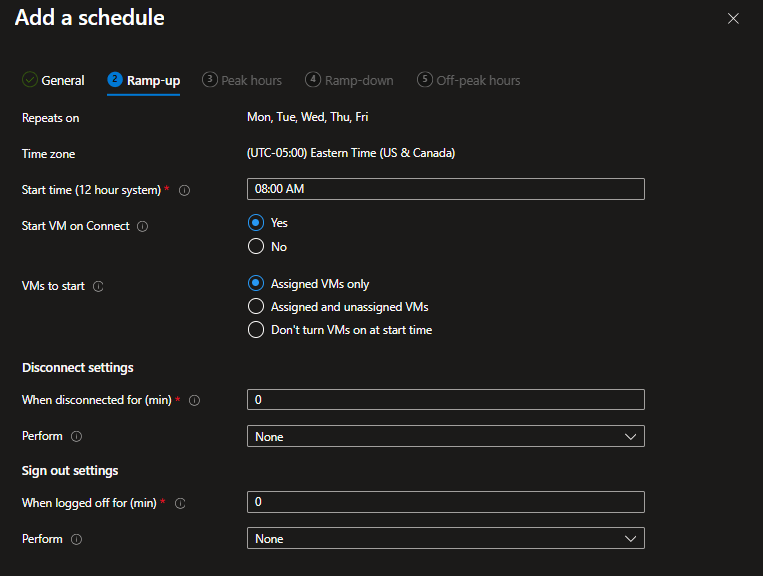
    During ramp-up periods for personal pools, the following options are available.

    • Whether to use Start VM on Connect, which allows for keeping host VMs powered off until they are needed
    • VMs to start controls which machines would be powered on automatically at the ramp-up start time. For example, all assigned hosts can be started. Or, the Don’t turn VMs on at start time setting can be used with Start VM on Connect for maximum cost savings. This may hinder the user-experience as end-users have delayed logins.

    Unlike pooled scenarios where multiple users are on a host VM, personal pools allow for more aggressive management. The Disconnect settings and Sign Out settings are unique to personal pools:

    • When disconnected for N minutes, admin can configure whether to take no action, Hibernate the VM, or Shutdown the VM.
    • When logged off for N minutes, admin have the same options.

    Peak hours, ramp-down, and off-peak hours all share the same Wizard options as shown here.

    Because of the consistent settings, admin really are leveraging the Disconnect and Sign out settings to optimize costs. Depending on the time of day, admin may take a more (less) aggressive approach. As always there is a balance with end-user experience. Hibernating and/or shutting down host VMs will result in delayed logins when the user attempts reconnection which must be taken into account.

    Coming soon…

    As a follow up to this article, we’ll cover Azure’s Preview capability, Dynamic autoscaling. See you there.

  • Better Together: Login Enterprise & Hydra (Part 2)

    Created by AI.

    This is part two of a series walking through how Hydra can integrate with Login Enterprise for further automated testing capabilities. If you haven’t read that article, check this out:

    Better Together: Login Enterprise & Hydra (Part 1)

    That blog talks about how Hydra can orchestrate fully-automated Launcher deployments, leveraging an Azure Marketplace vanilla image customized by Hydra Script Collections.

    The workflow

    This time we’ll focus on the Session Host, or in LE terms– the testing Target. In Login Enterprise, there is one primary dependency here, the Logon Executable, whose primary responsibility is to trigger automation scripts once a Virtual User logs in. The process looks like:

    1. Virtual User logs into Windows Desktop
    2. Logon Executable is triggered by Startup (e.g., GPO, Registry, Startup folder placement)
    3. Logon Executable “calls home” to download dependencies and initiate its job

    Configuring the Logon Executable

    This script is very similar to the Launcher Installation and Startup Shortcut configuration covered in Part 1, except this can be directly downloaded from a Login Enterprise Virtual Appliance.

    The PowerShell script automates the configuration by a) downloading the standalone Logon Executable from the specified appliance and b) creating a shortcut in the Startup folder.

    Anyway, here is the code:

    LogWriter("Downloading Logon EXE")
    
    # Base FQDN of the appliance
    $applianceFQDN = "https://<your_login_enterprise_fqdn_here>"
    
    # URL of the ZIP file to download
    $url = "$applianceFQDN/contentDelivery/api/logonApp"
    
    # Arguments to pass to the EXE (adjust as needed)
    $arguments = $applianceFQDN
    
    # Define temp paths
    $tempDir    = "C:\LoginVSI"
    $zipName    = [IO.Path]::GetFileName($url)                    
    $zipPath    = Join-Path $tempDir "$zipName.zip"                      
    $extractDir = Join-Path $tempDir ([IO.Path]::GetFileNameWithoutExtension($zipName))
    
    # Define shortcut properties
    
    # Define target executable and Startup shortcut paths
    $targetPath = "C:\LoginVSI\logonApp\LoginPI.Logon.exe"
    $shortcutPath = "$env:ALLUSERSPROFILE\Microsoft\Windows\Start Menu\Programs\Startup\LoginPI_Logon.lnk"
    
    # Ensure the extract directory exists (or recreate it)
    if (Test-Path $extractDir) {
        Remove-Item -LiteralPath $extractDir -Recurse -Force
    }
    New-Item -ItemType Directory -Path $extractDir | Out-Null
    
    try {
        # Download the ZIP file
        Invoke-WebRequest -Uri $url -OutFile $zipPath -UseBasicParsing
    
        # Extract the ZIP into $extractDir; -Force will overwrite if files already exist
        Expand-Archive -Path $zipPath -DestinationPath $extractDir -Force
    
        # Find the first .exe in the extracted folder (recursively)
        $exe = Get-ChildItem -Path $extractDir -Filter '*.exe' -Recurse |
               Sort-Object LastWriteTime -Descending |
               Select-Object -First 1
    
        if (-not $exe) {
            throw "No executable (.exe) found in '$extractDir'."
        }
    
        # Create the shortcut
    
    try {
        
        # Verify the target executable exists
        if (-not (Test-Path -Path $targetPath -PathType Leaf)) {
            throw "Target executable not found: $targetPath"
        }
    
        # Ensure the Startup folder exists (it should, but just in case)
        $startupFolder = Split-Path -Parent $shortcutPath
        if (-not (Test-Path -Path $startupFolder -PathType Container)) {
            throw "Startup folder does not exist: $startupFolder"
        }
    
        # Create the WScript.Shell COM object
        try {
            $WshShell = New-Object -ComObject WScript.Shell
        }
        catch {
            throw "Unable to create WScript.Shell COM object: $_"
        }
    
        # Create the shortcut
        $shortcut = $WshShell.CreateShortcut($shortcutPath)
    
        # Assign properties to the shortcut
        $shortcut.TargetPath       = $targetPath
        $shortcut.Arguments        = $arguments
        $shortcut.WorkingDirectory = Split-Path -Parent $targetPath
    
        # Save the shortcut to disk
        $shortcut.Save()
    
        Write-Host "Shortcut successfully created at: $shortcutPath"
        LogWriter("Shortcut created!")
    }
    catch {
        Write-Error "Failed to create shortcut: $_"
       LogWriter("Failed to create shortcut! $_")
    }
    
    
    }
    catch {
        Write-Error "An error occurred: $_"
        LogWriter("An error occurred! $_")
    }


    What’s next?

    This was the first series that covered how Hydra and Login Enterprise can operate better together. Perhaps there will be similar installments down the line, so look out for those.

  • Better together: Login Enterprise & Hydra (Part 1)

    Created by AI.

    If you haven’t seen the news, Login VSI acquired a new technology: Hydra. Hydra is a powerful Azure Virtual Desktop management and orchestration platform. Its main use cases include image management, auto-scaling, and user session management– in addition to providing a sleeker UI than native Azure.

    Hydra has the ability to execute PowerShell scripts against Session Hosts in host pools its managing. This means that custom images aren’t required, and Azure Marketplace images can be used with layered PowerShell customizations. This blog is Part One of a two part series that will highlight how this approach can be used to automate the deployment of Launchers and Session Hosts, all ready to test with Login Enterprise.

    The workflow

    To test Azure Virtual Desktop, there are two common approaches:

    • Using the Remote Desktop Client
    • Using the Windows App

    Login VSI has created templates for both scenarios, but the RDC is preferred in my case. To test Azure Virtual Desktop with a Login Enterprise Launcher, one needs installed a) the Launcher b) the Universal Web Connector and c) the appropriate ‘Connection Scripts’ to automate the connection process via UI.

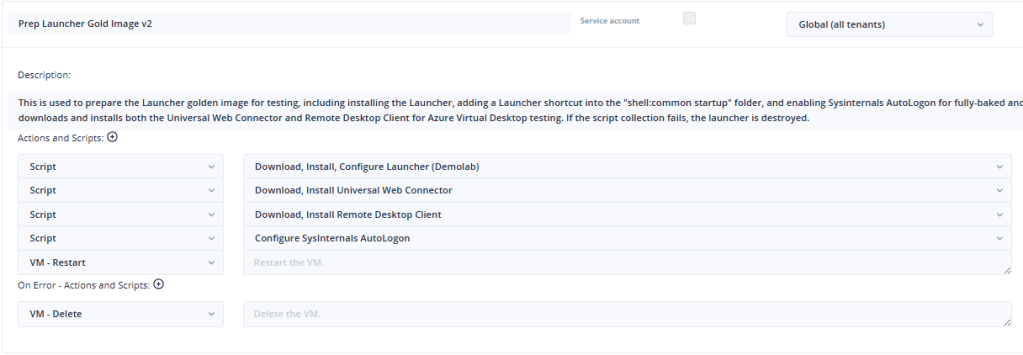
    Hydra has a concept of “Collections” which is a group of PowerShell scripts that are executed in sequence, with built-in error-handling, and the ability to interact with the VM (e.g., Install something then restart the VM). So, Collections will be used to configure the Launcher and Session Host.

    Installing the Launcher, UWC, and RDC

    The Launcher, Universal Web Connector, and Remote Desktop Client can all be installed using an analogous approach, so I will describe here only the Launcher installation.

    The PowerShell script automates the installation by downloading an MSI installer from a specified URL (in this case, hosted in Github) and executing it locally.

    The script also creates a Windows Shortcut for the Launcher, which is stored in the “All Users” Startup folder. As you’ll see in the next section, we use a local account configured with SysInternals’ AutoLogon to act as a Launcher service account. When the Autologon user logs in, the Launcher will automatically start, ready for testing.

    Here’s the code:

    # Set Login Enterprise Details
    $serverUrl = "https://<your_login_enterprise_fqdn_here>"
    $secret = "<your_launcher_secret_here>" 
    
    # Set Launcher Installation Defaults and Startup Folder Location
    $launcherProgramFilesPath = "C:\Program Files\Login VSI\Login Enterprise Launcher"
    $targetPath = Join-Path $launcherProgramFilesPath "LoginEnterprise.Launcher.UI.exe"
    $shortcutPath = "$env:ALLUSERSPROFILE\Microsoft\Windows\Start Menu\Programs\Startup\LoginEnterpriseLauncherUI.lnk"
    $startupFolder = Split-Path -Parent $shortcutPath
    
    
    ####################################################################################################
    # Download and Install MSI from GitHub
    ####################################################################################################
    $msiUrl        = "https://<URL_for_launcher_executable>" # E.g. add Setup.msi to public Github Repo
    $msiName       = "Setup.msi"
    $downloadDir   = "C:\Launcher\Installer"
    $msiPath       = Join-Path $downloadDir $msiName
    
    OutputWriter("Starting MSI download and install process.")
    OutputWriter("Installer URL: $msiUrl")
    OutputWriter("Installer will be saved to: $msiPath")
    
    ####################################################################################################
    # Create download directory
    ####################################################################################################
    if (-not (Test-Path $downloadDir)) {
        OutputWriter("Creating installer download directory: $downloadDir")
        try {
            New-Item -Path $downloadDir -ItemType Directory -Force | Out-Null
            LogWriter("Created directory $downloadDir")
        } catch {
            OutputWriter("Failed to create directory: $_")
            LogWriter("Directory creation failed: $_")
            exit 1
        }
    } else {
        LogWriter("Download directory already exists: $downloadDir")
    }
    
    ####################################################################################################
    # Download MSI
    ####################################################################################################
    OutputWriter("Downloading installer...")
    try {
        Invoke-WebRequest -Uri $msiUrl -OutFile $msiPath -UseBasicParsing
        OutputWriter("Download completed.")
        LogWriter("Downloaded $msiName to $msiPath")
    } catch {
        OutputWriter("Download failed: $_")
        LogWriter("Download error: $_")
        exit 1
    }
    
    ####################################################################################################
    # Install MSI
    ####################################################################################################
    if (Test-Path $msiPath) {
        OutputWriter("Starting MSI installation...")
        try {
            $arguments = "/i `"$msiPath`" /qn serverurl=$serverUrl secret=$secret"
            LogWriter("Executing: msiexec.exe $arguments")
            $process = Start-Process -FilePath "msiexec.exe" -ArgumentList $arguments -Wait -PassThru
    
            if ($process.ExitCode -eq 0) {
                OutputWriter("MSI installation succeeded.")
                LogWriter("Installer exit code: 0 (Success)")
            } else {
                OutputWriter("MSI installation failed with exit code: $($process.ExitCode)")
                LogWriter("Installer exit code: $($process.ExitCode)")
                exit $process.ExitCode
            }
        } catch {
            OutputWriter("Installation process failed: $_")
            LogWriter("Installer exception: $_")
            exit 1
        }
    } else {
        OutputWriter("MSI file not found at expected path: $msiPath")
        LogWriter("Installer missing: $msiPath")
        exit 1
    }
    OutputWriter("MSI process completed.")
    
    if (Test-Path $launcherProgramFilesPath) {
        OutputWriter("Launcher installation deemed successful based on installation folder in %PROGRAMFILES%.")
        # exit 0
    }
    
    ##################################################
    # Add Launcher to Startup folder
    ##################################################
    OutputWriter("Starting shortcut creation and Startup placement process.")
    OutputWriter("Creating shortcut from: $targetPath")
    OutputWriter("Shortcut will be added to $startupFolder")
    
    try {
        
        # Verify the target executable exists
        if (-not (Test-Path -Path $targetPath -PathType Leaf)) {
            throw "Target executable not found: $targetPath"
        }
    
        # Ensure the Startup folder exists (it should, but just in case)
        if (-not (Test-Path -Path $startupFolder -PathType Container)) {
            throw "Startup folder does not exist: $startupFolder"
        }
    
        # Create the WScript.Shell COM object
        try {
            $WshShell = New-Object -ComObject WScript.Shell
        }
        catch {
            throw "Unable to create WScript.Shell COM object: $_"
        }
    
        # Create the shortcut
        $shortcut = $WshShell.CreateShortcut($shortcutPath)
    
        # Assign properties to the shortcut
        $shortcut.TargetPath       = $targetPath
        $shortcut.Arguments        = $arguments
        $shortcut.WorkingDirectory = Split-Path -Parent $targetPath
    
        # Save the shortcut to disk
        $shortcut.Save()
    
        OutputWriter("Shortcut successfully created at: $shortcutPath")
        # LogWriter("Shortcut created!")
    }
    catch {
        # Write-Error "Failed to create shortcut: $_"
        OutputWriter("Failed to create shortcut! $_")
    }


    Configuring SysInternals Autologon

    The PowerShell script below automates the setup of Windows AutoLogon for a local user account. It downloads the SysInternals’ AutoLogon utility, then checks there is a local user account with the specified $autoLogonUsername exists. Otherwise, it creates one with a randomly generated password. The $autoLogonCount variable controls the number of automatic logons that are configured–each restart of the VM will decrement this value until its zero and no further auto logons will occur.

    Here’s the code:

    ####################################################################################################
    ####################################################################################################
    # Configure AutoLogon
    ####################################################################################################
    ####################################################################################################
    $autoLogonCount               = "7" # Configure the number of automatic logins here. Currently, this will configure 7 automatic logins.
    $autologonDownloadUrl         = "https://download.sysinternals.com/files/AutoLogon.zip"
    $autologonDownloadDestination = "C:\Launcher\AutoLogon"
    $autologonZipDestination      = Join-Path $autologonDownloadDestination "AutoLogon.zip" # C:\Launcher\AutoLogon\AutoLogon.zip
    $autologonUnzipDestination    = Join-Path $autologonDownloadDestination "AutoLogon"     # C:\Launcher\AutoLogon\AutoLogon\
    $autologonExePath             = Join-Path $autologonUnzipDestination "AutoLogon64.exe"  # C:\Launcher\AutoLogon\AutoLogon\AutoLogon64.exe
    
    $autologonUsername            = "autologin" # This is the username of the local user account, used for AutoLogon. You may configure this value.
    Add-Type -AssemblyName System.Web
    $password = [System.Web.Security.Membership]::GeneratePassword(20, 4) # A randomized password is created
    $securePass = ConvertTo-SecureString $password -AsPlainText -Force
    
    OutputWriter("Downloading SysInternals' AutoLogon from: $autologonDownloadUrl")
    OutputWriter("Archive will be downloaded to: $$autologonUnzipDestination")
    
    OutputWriter("Archive will be extracted to: $autologonUnzipDestination")
    OutputWriter("Target executable should be in: $autologonExePath")
    
    ##################################################
    # Prepare for download and extraction
    ##################################################
    if (-not (Test-Path $autologonDownloadDestination)) {
        OutputWriter("Creating folder to store Autologon download")
        New-Item -Path $autologonDownloadDestination -ItemType Directory -Force | Out-Null
    }
    else { 
        # OutputWriter("Folder already exists.")
        LogWriter("Autologon download folder already exists.")
    }
    
    ##################################################
    # Download AutoLogon and Extract
    ##################################################
    OutputWriter("Downloading SysInternals' AutoLogon")
    if (-not (Test-Path $autologonExePath)) {
        OutputWriter("AutoLogon64.exe not found. Proceeding to download and extract...")
        
        try {
            Invoke-WebRequest -Uri $autologonDownloadUrl -OutFile $autologonZipDestination -UseBasicParsing
            Expand-Archive -Path $autologonZipDestination -DestinationPath $autologonUnzipDestination -Force
            OutputWriter("Download and extraction complete.")
        }
        catch {
            OutputWriter("Failed to download or extract AutoLogon: $_")
            exit 1
        }
    } else {
        OutputWriter("AutoLogon already downloaded and extracted.")
    }
    
    
    ####################################################################################################
    # Create autologon user (if not exists)
    ####################################################################################################
    try {
        if (-not (Get-LocalUser -Name $autologonUsername -ErrorAction SilentlyContinue)) {
            OutputWriter("Creating local user '$autologonUsername'")
            New-LocalUser -Name $autologonUsername -Password $securePass -FullName $autologonUsername -PasswordNeverExpires:$true -UserMayNotChangePassword:$true
            OutputWriter("User '$autologonUsername' created.")
        } else {
            OutputWriter("User '$autologonUsername' already exists.")
        }
    }
    catch {
        OutputWriter("Failed to create or check user: $_")
        throw "Failed to create or check for user existence: $_"
    }
    
    ####################################################################################################
    # Configure AutoLogon using AutoLogon64.exe
    ####################################################################################################
    if (Test-Path $autologonExePath) {
        try {
            OutputWriter "Running AutoLogon64.exe configuration..."
            Start-Process $autologonExePath -ArgumentList $autologonUsername,$env:COMPUTERNAME,$password,"-accepteula" -Wait
            OutputWriter("AutoLogon configured.")
        }
        catch {
            OutputWriter("Failed to configure AutoLogon: $_")
            exit 1
        }
    } else {
        OutputWriter("AutoLogon64.exe not found at expected path: $autologonExePath")
        exit 1
    }
    
    ####################################################################################################
    # Registry configuration
    ####################################################################################################
    OutputWriter("Configuring registry values for AutoLogon...")
    
    $winlogonPath = "HKLM:\SOFTWARE\Microsoft\Windows NT\CurrentVersion\Winlogon"
    $policyPath   = "HKLM:\SOFTWARE\Microsoft\Windows\CurrentVersion\Policies\System"
    
    # Ensure required policies
    try {
        $regSettings = @{
            "$policyPath\dontdisplaylastusername"           = 0
            "$policyPath\DisableAutomaticRestartSignOn"     = 0
            "$winlogonPath\AutoLogonCount"                  = $autoLogonCount
        }
    
        foreach ($key in $regSettings.Keys) {
            $pathParts = $key.Split('\')
            $regPath = ($pathParts[0..($pathParts.Length - 2)] -join '\')
            $regName = $pathParts[-1]
            $desiredValue = $regSettings[$key]
    
            $existing = Get-ItemProperty -Path $regPath -Name $regName -ErrorAction SilentlyContinue
            if ($existing.$regName -ne $desiredValue) {
                Set-ItemProperty -Path $regPath -Name $regName -Value $desiredValue
                OutputWriter("Set registry '$regName' to '$desiredValue'")
            } else {
                OutputWriter("Registry '$regName' already set to '$desiredValue'")
            }
        }
    }
    catch {
        OutputWriter("Failed to update registry keys: $_")
        exit 1
    }
    OutputWriter("AutoLogon setup complete")


    Don’t say I didn’t warn you…

    Using AutoLogon as above means that the user’s password is stored in the Windows registry. If an attacker gains access to the system and can read the registry, they could retrieve this password and gain unauthorized access to the account. There is a trade-off between convenience and security when using AutoLogon.

    However, all of that said, there is no traditional console access to Azure VMs, and retrieving this password would require admin-level access to the Windows OS. If someone has this access, the system is already compromised, and the local user account is the least of your worries.

    Look out!

    This was the first installment of this series. In part two I will walkthrough how similar approach can be used to prepare a Session Host for testing in a fully automated, hands-off manner. See you there.