In previous posts, we covered Azure’s primary autoscaling capability, Power management autoscaling. It uses a matrix of rules defined across four periods of the day (Ramp-up, peak, ramp-down, off-peak hours) to power-on and power-off session host VMs.
In this article, we’ll cover Azure’s Preview capability, Dynamic autoscaling – how it’s different than Power management autoscaling, additional benefits, and its limitations. First, we’ll walkthrough the configuration wizard and discuss available settings.
Configuring dynamic autoscaling
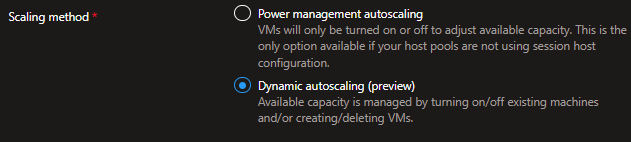
While in Preview mode, Dynamic autoscaling goes further than Power management autoscaling by creating and deleting session hosts.
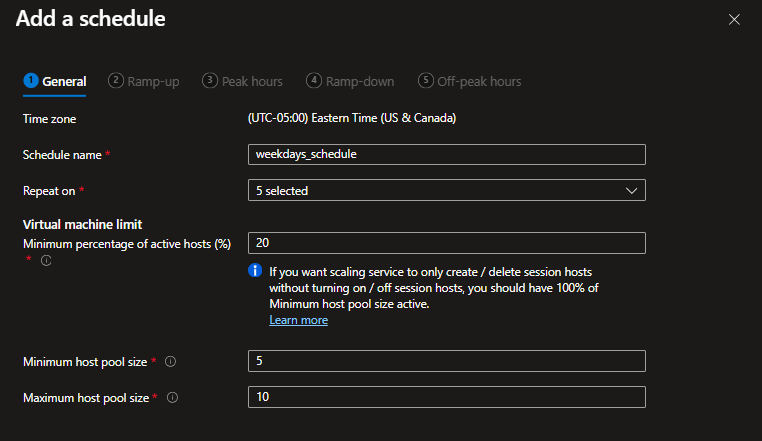
Already the settings in the Add a schedule wizard differ than those for Power management autoscaling:
Minimum host pool size is base capacity floor (the min. number of hosts in the pool, whether running or stopped)
Maximum host pool size is the capacity ceiling; the max. number of session hosts that Autoscale can create
Minimum percentage of active hosts is the minimum percentage of session hosts that should be always available. If this value is set to 10% and the Minimum host pool size is 10, Autoscale will ensure 1 session host is available.
Note the tooltip’s suggestion that a 100% setting for the Minimum percentage of active hosts will force autoscale to only create and delete hosts as opposed to starting and stopping them.
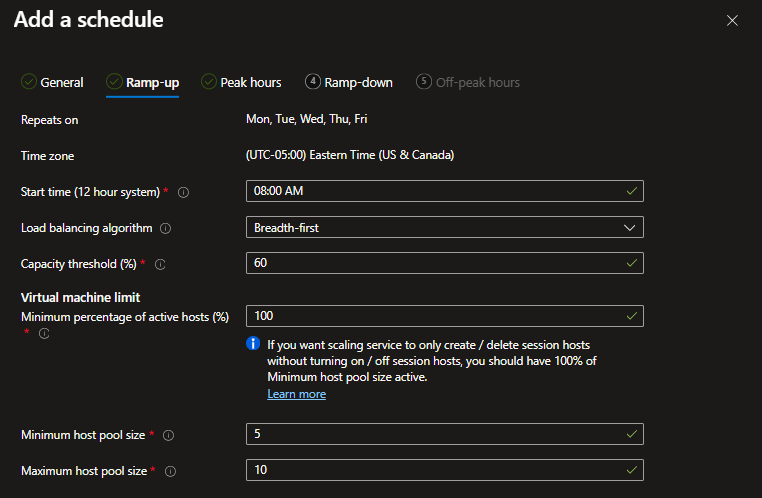
The Add a schedule wizard has the same flow as the Power management autoscaling, including the same usage periods:
Ramp-up
Peak hours
Ramp-down
Off-peak hours
The Ramp-down schedule has added some options for forced logoffs. These settings work the same as when configured for Power Management autoscaling – except for the fact that Autoscaling can now delete unused session hosts as opposed to just deallocating them.
During off-peak hours using an aggressive capacity threshold and minimum active host percentage can provide cost savings by only spinning up session hosts ad hoc.
What next?
We’ve now covered the generally available Power management autoscaling and Azure’s Preview capabilities around Dynamic autoscaling. In future articles, we’ll directly compare the two solutions. See you there.
By default, Azure Virtual Desktop (AVD) session hosts are statically deployed. While session hosts are powered on, they are incurring compute and storage costs, for ‘renting’ the VM, and housing the OS storage disk. If you deallocate VMs, you save on the compute cost, but the storage costs persist. (FWIW this is the third-party website (cloudprice.net) I use for quickly viewing and comparing costs between SKUs and regions.)
Ideally, autoscaling provides demand elasticity. Based on the user demand, autoscaling can expand and contract available capacity, optimizing the usage costs described above.
Once created and defined, a scaling plan can be applied to multiple host pools, but a host pool can only utilize one scaling plan. Scaling plans can have multiple schedules to support changing requirements, such as weekdays versus weekends.
Important to note is that autoscale ignores drain mode settings, and for pooled scenarios, it ignores load balancing algorithms (in favor of those defined in the scheduled autoscaling plan).
At present, Azure’s generally available autoscaling is Power management autoscaling:
Adjusts available capacity in a pool by powering on and shutting off session hosts based on demand
Configuring scaling plans
For the scaling method, this post will cover Power management. In future posts, check out content on Dynamic autoscaling.
Configuring scaling plans
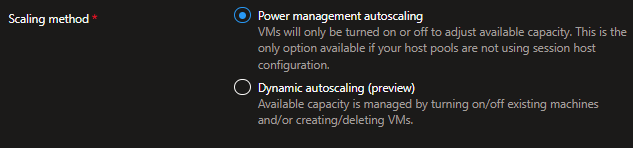
After inputting some metadata like the name, resource group, and region, admin can select their scaling type:
Scheduling options differ between pooled and personal scenarios. This section will discuss the nuances to be aware of. First, we’ll cover the four conceptual parts of the day:
Ramp-up, which is the start of the day
Peak hours are when the usage is highest
Ramp-down hours occur as users logoff (typically where scaledown occurs)
Off-peak hours are hours when the usage is lowest
Pooled schedules
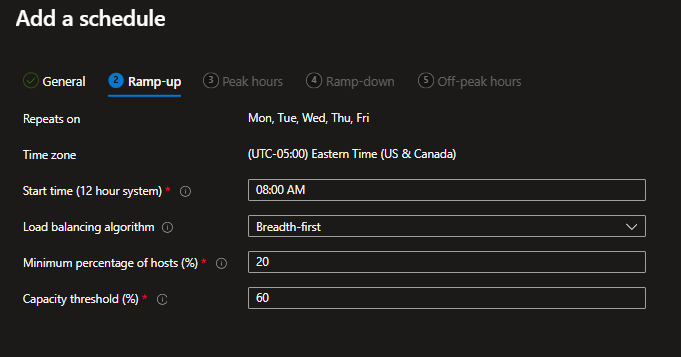
Below the Azure Portal Add a schedule wizard is shown. Admin specify when their ramp-up period begins, the desired load-balancing algorithm. Importantly, they specify the Minimum percentage of hosts (%) and Capacity threshold:
Start time is when the ramp-up logic should start
Minimum percentage of hosts is the percentage of session host VMs to start for ramp-up and peak hours. If you have 10 hosts in a pool and this is set to 10%, 1 VM will be powered on.
Capacity threshold is the percentage of capacity used before autoscaling will evaluate rulesets. If this is set to 60% and the total host pool capacity is 100 sessions, additional session hosts will be powered on once exceeding 60 sessions.
Load balancing algorithm is set to Breadth-first. As the machines are powered-on, end-users will be brokered to the ‘least busy’ host.
The peak hours period uses the same settings, except for Minimum percentage of hosts. During the peak usage periods you want capacity to handle incoming demand. So, all needed VMs are powered on.
Notice here that the load balancing algorithm is now depth first, to effectively utilize all powered on resources.
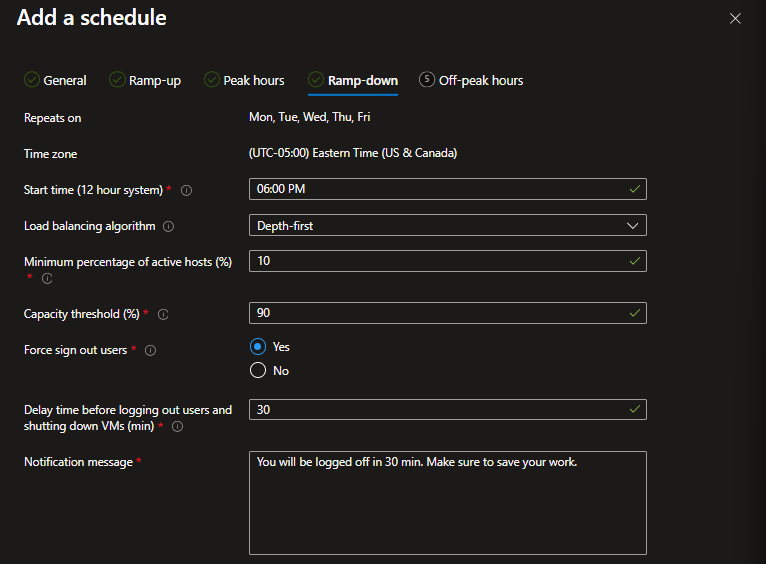
And below us now are the default Ramp-down settings.
Minimum percentage of active hosts is the number of machines you’d want to leave powered on during off-peak hours. If you have 10 session hosts and this value is set to 10%, autoscale will power off 9 hosts, leaving 1 available.
Capacity threshold means the same here. But, the noticeably higher value here means that a host pool with a total capacity for 100 sessions would only power on additional hosts when exceeding 90 sessions. During the ramp-down, this allows for powering down hosts.
Unlike the others, the ramp-down contains the force sign out and delay time before force logout settings.
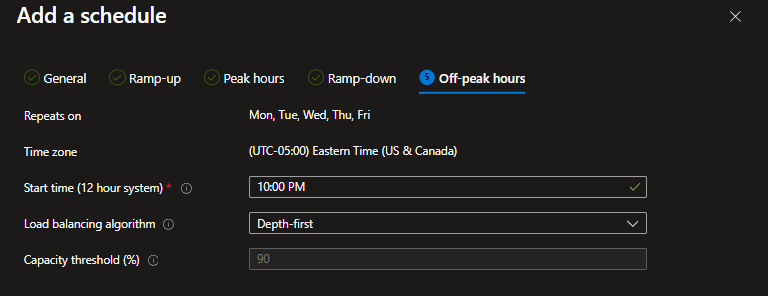
Lastly, here are the Off-peak hours settings. Only the capacity threshold is available.
Personal schedules
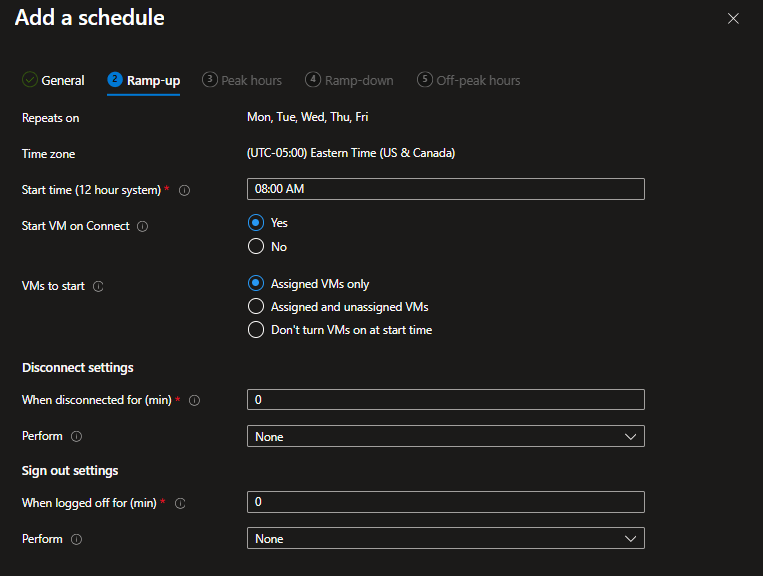
During ramp-up periods for personal pools, the following options are available.
Whether to use Start VM on Connect, which allows for keeping host VMs powered off until they are needed
VMs to start controls which machines would be powered on automatically at the ramp-up start time. For example, all assigned hosts can be started. Or, the Don’t turn VMs on at start time setting can be used with Start VM on Connect for maximum cost savings. This may hinder the user-experience as end-users have delayed logins.
Unlike pooled scenarios where multiple users are on a host VM, personal pools allow for more aggressive management. The Disconnect settings and Sign Out settings are unique to personal pools:
When disconnected for N minutes, admin can configure whether to take no action, Hibernate the VM, or Shutdown the VM.
When logged off for N minutes, admin have the same options.
Peak hours, ramp-down, and off-peak hours all share the same Wizard options as shown here.
Because of the consistent settings, admin really are leveraging the Disconnect and Sign out settings to optimize costs. Depending on the time of day, admin may take a more (less) aggressive approach. As always there is a balance with end-user experience. Hibernating and/or shutting down host VMs will result in delayed logins when the user attempts reconnection which must be taken into account.
Coming soon…
As a follow up to this article, we’ll cover Azure’s Preview capability, Dynamic autoscaling. See you there.
This blog will detail the best practices for managing an Azure Virtual Desktop implementation without a third-party control plane, such as Hydra.
Host pool management
Session host configuration is essentially a blueprint that configures session hosts as they are created, including:
Session host configuration: blueprint for session host VMs
Session host management policy: blueprint for lifecycle management including creation and updating host VMs
Session host update: updates host VMs when the session host configuration is updated to ensure consistent behavior across the pool
Autoscale: dynamically scales the number of host VMs in a host pool based on demand
Session host configuration
It includes properties like:
VM name prefix, VM resource group, Avail. Zones
VM image, VM size, OS Disk information
VM location, VM tags, VM network settings
These settings and more are configured once and applied to those hosts created in the future. Changing the settings above will change the configuration of hosts that are deployed via Autoscaling.
If you modify the configuration while there are existing hosts in a pool, you must schedule the update action. If there’s none present, you’re good to go.
Session host management policy
A Session Host Management policy sets the update and creation behavior of the pool. When using Session Host configuration, at least one host management policy is required. A management policy is created once you enable Session Host Configuration, with the defaults shown here:
setting
description
default
time zone
the time zone used to schedule updates
UTC
max VMs removed during updates
the max number of session hosts to update concurrently (batch size)
1 VM
logoff delay (minutes)
the amount of time to wait after an update for users to be notified to sign out, before forcing logoffs
2 minutes
logoff message
the messaged displayed to users during update process
“You will be signed out”
leave in drain mode
whether newly created hosts should be left in drain-mode for post-deploy actions
False
failed session host cleanup policy
whether to keep none, some, or all hosts that raise errors during deployment. Not applicable for updates (only creates)
KeepAll
A couple of thoughts here:
Max VMs removed during update: In larger host pools, this might be too slow. Batches of 3-5 hosts may be more appropriate. Balancing speed vs. user impact is the trade-off, but for certain zero-day updates or urgent resolutions there may be little flexibility.
Logoff delay in minutes: For critical workloads, the default two-minute logoff delay might be too low. Again, depending on the urgency there may be little flexibility.
Leave in drain mode: if images don’t require any post-deployment prep via Intune or SCCM, leave this false to allow rapid session host availability.
Standard management
Standard management is best suited alongside automated pipelines, custom deployment scripts, and management platforms like Hydra.
Microsoft calls out common admin tasks and processes in comparison with the Session Host Configuration approach.
Creating and configuring session hosts can be done in the portal or other automation using a registration token. Admin must ensure the configuration is consistent across the pool, so automation is key even in native-Azure deployments.
Scale session hosts can be configured using Azure Autoscale (e.g., Scaling Plans) to turn session hosts on and off based on schedules and usage demands
Update session host images using automation pipelines or custom scripts as the Host Update capability is unavailable.
Automatically powering on session hosts can still be achieved using the Power-on-Connect (Start VM on Connect) feature to enable end-users to turn on their session hosts as needed.
Working with Azure admin, many use the Azure Image Builder (or native Packer) in concert with Azure Compute Gallery, such that the latest image is always used in a host pool, and new hosts always inherit the latest and greatest changes as they are built.
Takeaways
In future articles, we’ll dig deeper into native autoscaling and the Session Host update (preview) capabilities within Azure. Because Hydra has powerful built-in image management capabilities, digging into AIB or Packer CI/CD pipelines won’t be a top focus.